GoHighLevel gives restaurants a single platform to handle reservations, guest follow-up, review generation, loyalty messaging, and reactivation campaigns. Most restaurant owners are paying for five separate tools that don't talk to each other — OpenTable, Mailchimp, a review service, an SMS tool, and a CRM. GHL replaces all of them for a fraction of the cost and connects every piece automatically. This guide walks you through the complete setup, from your first contact record to your first automated campaign, in a logical sequence you can follow even if you've never used marketing software before.
Step 1: Account Setup and Branding
After creating your GHL sub-account, the first priority is branding and business configuration. Navigate to Settings > Business Profile and fill in your restaurant name, address, phone number, website, and business hours. This information is pulled into every automated message and email template, so accuracy here matters. Upload your logo and set your brand colors — these populate in your email templates automatically.
- Set your timezone correctly — this controls when automated messages send
- Add your Google Business Profile link for review requests
- Connect your domain for branded email sending (avoids spam filters)
- Set up a dedicated business phone number inside GHL for SMS
Step 2: Build Your Guest Contact Database
Your CRM is only as good as the data in it. For restaurants, guest data comes from four main sources: reservation forms, loyalty sign-ups, online order platforms, and in-store QR code sign-ups. In GHL, set up a custom contact tag for each source (e.g., 'reservation-guest,' 'loyalty-member,' 'delivery-customer') so you can segment campaigns later. Create custom fields for: birthday month, dietary preferences, favorite table, and average spend tier.
If you're migrating from another system, GHL's CSV import tool accepts standard contact exports from most platforms. Map your existing fields carefully — phone number format matters for SMS delivery. GHL requires numbers in E.164 format (+1XXXXXXXXXX).
Step 3: Set Up Your Reservation Calendar
GHL's calendar module works well for reservation management, particularly for restaurants that take small-party bookings directly from their website. Create a calendar called 'Dining Reservation' and configure your service windows (lunch 11am–2pm, dinner 5pm–9pm). Set the appointment duration to match your average table turn time — typically 90 minutes for dinner service.
- Enable max bookings per slot to control covers per seating
- Require a deposit via Stripe integration for parties of 6 or more to reduce no-shows
- Embed the booking widget on your website's reservations page
- Connect your Google Calendar so front-of-house staff see bookings in real time
"Restaurants that automate reservation confirmations and reminders see no-show rates drop from an industry average of 20% down to under 6%. That's the difference between a profitable Saturday night and a half-empty dining room." — National Restaurant Association, 2025 Operations Report
Step 4: Build Your Automated Confirmation and Reminder Sequences
Once a guest books, GHL's workflow builder fires automatically. Build a workflow triggered by 'Appointment Booked' in your Dining Reservation calendar. The sequence should look like this: an immediate SMS confirmation with the booking details, an email confirmation with your menu PDF and parking information, a 48-hour reminder SMS with a link to add to calendar, a same-day morning reminder at 10am, and a 2-hour pre-arrival SMS with a warm welcome message. Each message should feel personal — use the guest's first name merge tag and the specific reservation time.
Step 5: Automate Google Review Requests
Reviews are the lifeblood of restaurant visibility. A restaurant with 4.6 stars and 400 reviews outranks a competitor with 4.9 stars and 30 reviews in most local search results. GHL lets you trigger a review request automatically 2 hours after a reservation's scheduled end time. Build a workflow: 'Appointment Status = Completed' triggers a 2-hour delay, then sends an SMS: 'Thanks for dining with us tonight, [Name]! If you enjoyed your experience, a quick Google review means the world to us: [your review link].' Keep it short, personal, and link directly to your Google review form — not your homepage.
Add a follow-up email 24 hours later for guests who didn't open the SMS. Restaurants using this two-touch review sequence average 3–5x more monthly reviews than those who ask manually at the table.
Step 6: Build a Birthday and Anniversary Campaign
Birthday and anniversary campaigns are the highest-ROI email campaigns in the restaurant industry, with average redemption rates of 22–35% compared to 2–4% for generic promotional emails. In GHL, create a workflow triggered by a date field: 'Birthday Month = Current Month' fires 7 days before the 1st of that month, sending a personalized offer — a free dessert, a complimentary glass of wine, or a discount on the guest's next visit.
- Collect birthday month (not full birthday) to reduce privacy friction at sign-up
- Send the offer 7 days before their birthday so they have time to plan
- Include a clear expiration date to create urgency
- Track redemptions by adding a tag when the guest books using the promo code
Step 7: Set Up a Guest Reactivation Campaign
Lapsed guests are your most profitable re-engagement target — they already know you, they've already spent money, and winning them back costs 5x less than acquiring a new customer. In GHL, create a filter: 'Last Appointment Date is more than 90 days ago AND tag includes reservation-guest.' Set this as a smart list that auto-updates. Build a 3-message reactivation sequence: a 'We miss you' SMS with a modest offer, a follow-up email 5 days later with your latest menu update, and a final SMS 5 days after that with a stronger incentive ('20% off your next table — this week only').
Step 8: Build a Loyalty SMS Program
GHL's SMS tools let you run a simple points-based loyalty program without any third-party app. Create a keyword — for example, text 'REWARDS' to your GHL number — that automatically adds a contact tag and enrolls them in your loyalty list. Use custom fields to track visit count. Each time a tagged guest completes an appointment, a workflow fires that increments their visit counter and sends a milestone reward when they hit 5, 10, or 20 visits. It's not as feature-rich as a dedicated loyalty app, but for most independent restaurants it covers 80% of the use case at zero extra cost.
Step 9: Connect Your Online Ordering Platform
If you use Toast, Square, or a third-party delivery platform, you can pipe order data into GHL using Zapier or Make (formerly Integromat). Create a Zap that triggers on every completed order and creates or updates a contact in GHL with the order value and date. This lets you segment delivery customers separately from dine-in guests and build campaigns specifically for converting online-only customers into in-restaurant diners — typically a more profitable and loyal segment.
Step 10: Measure What's Working
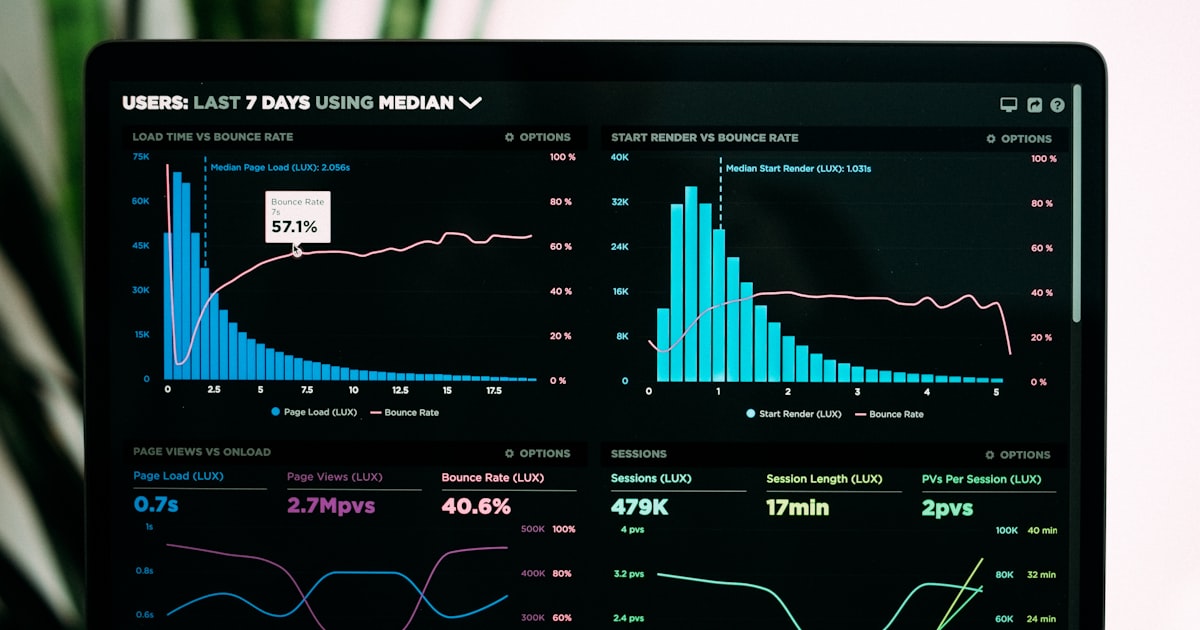
GHL's reporting dashboard shows you workflow trigger counts, email open rates, SMS delivery rates, and appointment counts over time. Set a monthly review cadence to check: review volume (should be increasing), no-show rate (should be under 10%), reactivation campaign redemption rate, and birthday campaign bookings. Restaurants that do this review monthly and iterate on their sequences see compounding results — the system gets smarter as you refine it.
BlueDash Creative sets up and manages complete GHL systems for restaurants, including all of the above sequences plus AI chatbot integration for handling reservation inquiries on your website and Instagram. If you'd rather have the system built for you and maintained by our team, that's exactly what our AI marketing workforce does.
![The Complete Guide to Done-for-You Marketing Automation [2026]](/blog/done-for-you-automation.jpg)